
Text you can change.
Adjust the wording, font, spacing, color, and placement of text layers. Keep a headline separate from the background image.
Editable social media images
Create editable social media images in Merlin. Adjust the text, images, shapes, and layout in the editor, or ask AI for a revision. Review the design and export the finished image.
Inside the editor
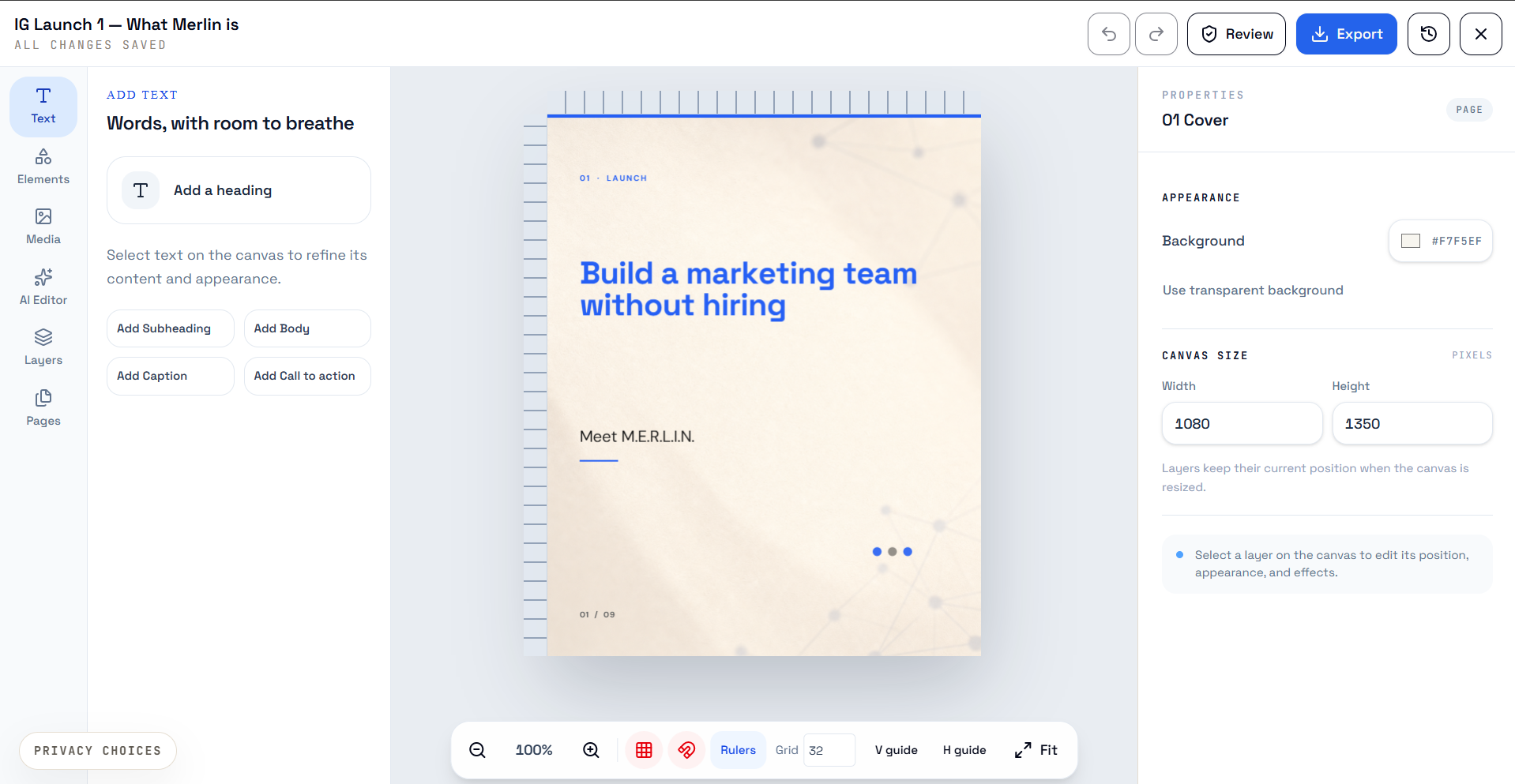
The canvas and tools stay close to the design.
Make changes yourself
Work with separate layers
Export PNG, JPG, or WebP
From a brief to a finished image
Keep the generated design and the final changes in one workspace.
Describe the message, channel, and visual direction. Open the editable image document saved in your conversation workspace.
Select a layer to adjust its text, position, size, or appearance. Use the AI Editor when you want help with a change.
Check the wording, layout, images, and brand details. Use the Pages panel when the document has more than one page.
Choose PNG, JPG, or WebP. Download the image or use Save & Add to Post, then review the post before scheduling it.
The tools around the image
Change the parts of an editable design without starting the whole image again.
Adjust the wording, font, spacing, color, and placement of text layers. Keep a headline separate from the background image.
Work with text, images, and shapes as separate objects. Select, position, resize, and organize the parts of an editable design.
Keep multiple artboards in one document. Use Pages to navigate the design and review each image before export.
Describe a change in the AI Editor. Inspect the result and make your own adjustments before you use the design.
Use zoom, fit, rulers, guides, and snapping to inspect placement. Change the page dimensions when the design needs a different canvas.
Use undo and redo while editing. Open Revision history to inspect saved versions of the editable document.
The finished file
Export PNG, JPG, or WebP. Download the active page, or download all pages when the multi-page export option is available.
Use Save & Add to Post to attach the exported design. Review the copy, channel, and media before the post goes further.
Explore content review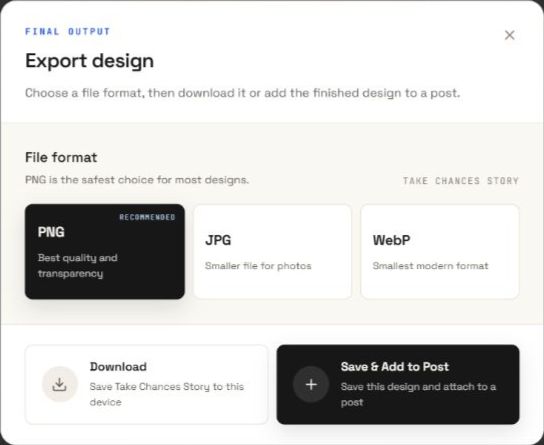
Know what leaves the editor
Choose the format in the export dialog. Confirm that it fits the destination where you will use the image.
Supports transparency for image designs that need it.
A photo image format. The export does not retain transparency.
An image format available alongside PNG and JPG in the editor.
These exports contain the rendered image. They do not contain the editable layer document, a PDF, or a finished video.
The image is part of the post
Check the image beside the copy and selected channel. Keep the final review close to the design, then choose how and when the post will be published.
Explore social schedulingBefore you create
An editable image document keeps text, images, and shapes as separate layers. You can change those layers in the editor. A flat image remains an image layer; its individual pixels or printed words do not automatically become separate editable objects.
Yes. Select a layer and use its controls to change the relevant text, position, size, or appearance. You can also ask for a change in the AI Editor and review the result.
The image editor exports PNG, JPG, and WebP. These are image files. The editable document and its layers remain in Merlin; the download is not an editable SVG or PSD file.
For a multi-page document, Download all pages is available when the export workflow supports it. It downloads the pages as separate image files in the selected format. You can also download the active page.
This page describes editable image designs and image exports. A reel script or production brief is not a finished video. Review the requirements of the post format before you schedule the content.
Your ideas. A full team.
Bring your business, your voice, and your next idea.