
The Merlin field guides / Review and approval
A social media content
approval workflow.
Give every draft a clear reviewer, a clear decision, and a next step.
A social media content approval workflow moves a complete draft through internal review, client or brand sign-off, any required revisions, and a separate publishing decision. Give each step an owner and deadline. Approve a specific version of the copy and media, then confirm what actually reached the channel.
“Looks good” can mean several things. The writer may mean the copy is finished. The client may have seen an earlier image. The person scheduling may assume both are ready. An approval process should make those decisions visible before a post leaves the workspace.
Use the workflow below to agree on who checks the work, which version they see, and what their approval allows. It applies to agency teams and businesses managing their own content. For the wider planning process, read how agencies manage client content calendars.
Define what approval means.
Start with three separate questions. They can be handled by the same person, but each needs an answer:
- Is this content ready? The reviewer accepts the current message, facts, copy, and media for the intended audience.
- May this publishing action proceed? The authorized person checks the destination account, method, timing, and external action.
- Did the post publish? The person responsible for delivery checks the result after the action.
Write these distinctions into the team’s process. A client approving the wording does not necessarily authorize an immediate post to a connected account. A scheduled time does not establish that the post is live.
In Merlin
Approved is an internal post status. External Buffer requests have their own approval controls and results. Review the actual action before authorizing it; an action labelled “Approve and publish now” can publish immediately.
Explore content review and approvalName the reviewers and one coordinator.
Give each person a defined question to answer. A small team can combine roles. The important part is that everyone knows who resolves feedback and who can make the final decision.
| Role | Main check | Next step |
|---|---|---|
| Creator | Does the complete draft answer the brief and use supported facts? | Send copy and media together for internal review. |
| Internal reviewer | Are the message, brand voice, format, and assets ready for the client? | Resolve avoidable issues before requesting sign-off. |
| Client or brand approver | Can the business stand behind this version and its claims? | Approve the identified version, request changes, or place it on hold. |
| Publishing owner | Are the account, method, media, time zone, and permissions correct? | Arrange the publishing action and inspect its result. |
Choose one coordinator to collect comments, resolve conflicting instructions with the client, and keep the current version clear. Avoid asking the writer to interpret separate decisions from several chat threads.
Agree on review deadlines before production starts. Leave enough time to make a revision and show it again. Keep the coordinator and deadlines visible in the team’s shared record alongside the draft.
Review the complete post in context.
Give the reviewer the copy, media, channel, format, and intended purpose together. An isolated caption cannot show whether a carousel’s last slide contradicts the offer or whether a video still needs its final edit.
- Purpose: the post answers the brief and gives the reader a clear reason to care.
- Facts: names, figures, quotes, product details, and claims match the approved sources.
- Voice: wording fits the client’s guidance and this specific audience.
- Media: the correct image, slide order, or finished video accompanies the copy.
- Format: text length, links, crop, and required fields fit the intended channel.
- Next action: the offer, destination link, and call to action are accurate and usable.
Check AI-assisted drafts against the same list. Use AI suggestions to help find issues, then verify facts against the source material. A polished sentence is not evidence that a claim is true.
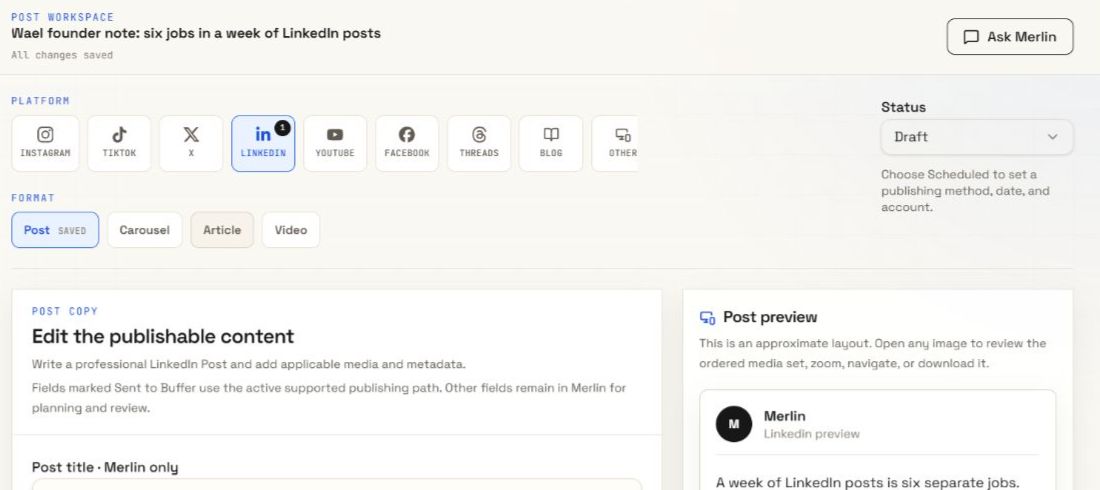
In Merlin, edit the saved post directly or use Ask Merlin to request a revision. Check the saved result before approving the next action. The preview helps you inspect the layout; it is an approximate view of the eventual post.
Ask for a decision on a specific version.
A useful approval request tells the reviewer what they are seeing, what needs their judgment, and when they should respond. Identify the version in your team’s shared record so an older attachment cannot be mistaken for the final post.
Example approval request · fictional post
Please review version 3 of the LinkedIn service announcement: the attached copy and image. Confirm the service description and the link destination. The intended slot is Thursday at 10:00 in the client’s agreed time zone. Please approve this version or request changes by Tuesday at 15:00. We will check the publishing settings separately before scheduling.
Use an explicit response: approve this version, request changes, or hold the post. If approval depends on a correction, keep the item open until the correction is made and the right person has checked it.
Keep the approved copy and media reference, the approver, the decision, and its date together in the team’s agreed record. This gives the publishing owner a specific version to check before taking the next action.
Keep revisions inside the review loop.
Turn feedback into an actionable request. “Make it stronger” is hard to verify. “Replace the unsupported savings claim with the approved service description” tells the creator what to change and the reviewer what to check.
When reviewers disagree
Ask the coordinator to resolve the conflict with the person who owns the final decision. Give the creator one current direction. Do not silently choose which client instruction to ignore.
When a post changes after sign-off
Record the new version and identify which decision the change affects. A different offer, image, claim, destination link, or audience can require another content review. A changed account or time needs the publishing owner’s check. Agree in advance how small corrections will be handled.
When feedback is late
Keep the post pending, move its intended date, or use another already reviewed item. Tell the coordinator what is blocked. Do not infer approval from silence unless the client has explicitly agreed to that process.
If the post is already scheduled externally, inspect that schedule before editing or retrying. Changing a draft inside a workspace is not proof that an external queued post has changed.
Check what the publishing approval allows.
Before authorizing a publishing action, compare the request with the version the client approved. Confirm:
- The correct client, destination account, and channel.
- The actual copy and media that will be sent.
- Whether the request schedules a post or publishes it immediately.
- The requested date and time zone, where scheduling applies.
- Any missing media, unsupported format, or account connection issue.
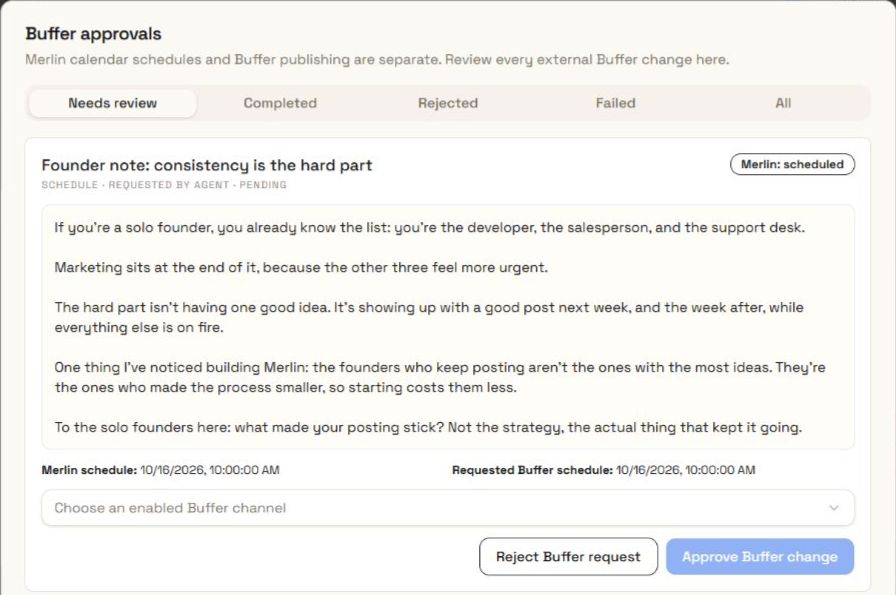
In Merlin, a calendar date is a plan. Automatic publishing also needs a supported method, a connected account, and any required approval. Reject a pending request if it does not describe the action you intend to authorize.
If the post uses the Manual method, Merlin will not publish it for you. The publishing owner must complete that step through the agreed channel workflow.
Close the loop with a confirmed result.
After the intended publishing time, inspect the action result and the destination post where available. Keep the live link in your delivery record. Report “scheduled” or “waiting for review” when that is the actual state.
If the action fails or the outcome is unclear, check whether the post already exists before retrying. Resolve the account, media, or format problem and review any changed action. Avoid sending a duplicate while trying to recover the first attempt.
At the end of the batch, review where work stalled. Was the source missing, the request unclear, or the approver unavailable? Make one specific improvement to the next brief or review window.
Before the next approval request.
Who should approve social media content?
Name a person who can confirm the message and claims for the business. Use internal review to catch avoidable errors first. Separately identify who can authorize the actual publishing action; one person may hold both responsibilities.
Does every post need client sign-off?
Agree on this with the client before production. Decide which categories can use an agreed routine and which offers, claims, or changes need their review. Keep the decision clear enough that the team does not have to guess for each post.
Does Approved in Merlin mean the post is live?
No. Approved is a post status inside Merlin. A Buffer approval authorizes the specific external action in its request. Check the publishing result separately to establish whether the post is live.
Can a small team use this process?
Yes. One person can create and coordinate, while another checks the draft. Keep the brief, current version, decision, and publishing result visible. Combine roles where useful without losing the checks each role needs to make.
Make the next decision clear
Review the post before it represents you.
See Merlin’s editable post workspace, review steps, and separate publishing approval controls.
Explore content review